
Choose a gaming laptop that can run your games while encoding a live stream, then check that your internet connection and streaming setup are ready. This guide is for first-time buyers and streamers who want a practical way to compare laptops without relying on one headline specification. Allow 1–2 hours to shortlist and check models, plus time to compare prices and availability. You will need a streaming service account to complete the final setup test.

Get movie nights delivered free with Prime
- Fast, free delivery on millions of items
- Prime Video, Amazon Music and more included
- Member-only deals all year
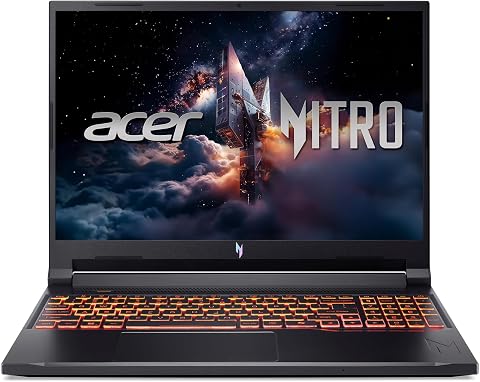
Acer Nitro V Gaming Laptop, Core 7 240H, RTX 5050, 16-inch
- ✔ Processor: Intel Core 7 240H
- ✔ Graphics: NVIDIA GeForce RTX 5050 Laptop GPU, 8GB GDDR7
- ✔ Memory: 16GB DDR5; two slots, up to 32GB

Acer Nitro V Gaming Laptop, i7-13620H, RTX 4050, 15.6-inch
- ✔ Processor: Intel Core i7-13620H
- ✔ Graphics: NVIDIA GeForce RTX 4050 Laptop GPU, 6GB GDDR6
- ✔ Memory: 16GB DDR5; two slots, up to 32GB

Gaming Laptop 2026, Intel Core i7, 16GB RAM, 512GB SSD
- ✔ Processor: Intel Core i7, model unspecified; listed speed up to 3.9GHz
- ✔ Graphics: Integrated Intel HD Graphics 620
- ✔ Memory: 16GB LPDDR3, 1666MHz
Difficulty: Beginner | Time: 1–2 hours, plus time to compare models
What You’ll Need
Tools & Materials:
- A web browser for comparing laptop specifications and prices
- A reliable internet connection
- A streaming platform account, such as Twitch or YouTube, for the setup test
- Headphones or a headset with a microphone for an audio check
Knowledge:
- Basic familiarity with the games you plan to play
- A rough idea of your budget and where you will use the laptop
Decide which games you expect to stream and whether you want to play at 1080p or a higher resolution. Laptop performance varies by model and cooling design, even when two machines list the same processor or graphics chip. Check full model specifications and independent reviews before buying. Prices, available parts, and streaming platform settings change over time.
Acer Nitro V Gaming Laptop, Core 7 240H, RTX 5050, 16-inch
For a buyer who wants one laptop to play and broadcast, the Acer Nitro V 16 has the most convincing configuration in this group. Its GeForce RTX 5050 is the newest dedicated GPU listed here, while the Intel Core 7 240H and 16GB DDR5 provide a reasonable foundation for running a game alongside streaming software. Compared with the Nitro V 15, it also has a larger 16-inch, 1920 × 1200 display: the extra vertical room is useful when keeping a game, chat, and control panels in view, and the 180Hz refresh rate suits fast-paced play.The listing also specifies dual-fan cooling, fan controls, Thunderbolt 4, HDMI 2.1, Ethernet, and Wi-Fi 6. Those features make it easier to build a streaming setup around the laptop, including wired networking and external devices. Its 1TB SSD is double the Nitro V 15’s stated capacity, leaving more room for games and recordings. Still, 16GB RAM may become a constraint when a game, browser, overlays, and production tools are all open; the two-slot design supports up to 32GB, but upgrading is an extra step. At 5.3 pounds, it is also the heaviest pick. We would choose it for a mostly desk-based setup, not for frequent travel.
Pros:
- GeForce RTX 5050 is the strongest dedicated GPU listed in this roundup.
- 16-inch 16:10 display with 180Hz refresh rate gives more workspace and smooth motion.
- 1TB Gen 4 SSD and microSD reader offer useful game and media storage options.
- Dual-fan cooling, Ethernet, Wi-Fi 6, HDMI 2.1, and Thunderbolt 4 support a flexible setup.
Cons:
- At 5.3 pounds, it is the heaviest laptop here.
- 16GB RAM may be tight for demanding games and a busy streaming scene; listed maximum is 32GB.
- The listing does not specify webcam or microphone quality.
Best for: Streamers who want the strongest listed graphics hardware, more screen workspace, and broad connectivity in a laptop that will usually stay near a desk.
Not ideal for: Frequent travelers, buyers seeking a lightweight everyday carry, or streamers who need ample memory out of the box without upgrading.
Bottom line: Choose the Nitro V 16 for the best stated combination of gaming graphics, streaming multitasking, display space, and connectivity in this lineup.
“Choose the Nitro V 16 for the best stated combination of gaming graphics, streaming multitasking, display space, and connectivity in this lineup.”
Acer Nitro V Gaming Laptop, i7-13620H, RTX 4050, 15.6-inch
The Acer Nitro V 15 is a practical step down from the Nitro V 16, not a different class of machine: it keeps dedicated NVIDIA graphics and a high-refresh display, but uses an RTX 4050 and a 15.6-inch Full HD panel. Its Intel Core i7-13620H is explicitly positioned for gaming, recording, and streaming together, which makes this the clearest alternative for someone who wants those workloads in a slightly smaller package. The 165Hz IPS display remains well suited to responsive gameplay, although the Nitro V 16 offers more resolution, refresh rate, and screen area.Storage is a strength: the 1TB Gen 4 SSD matches the newer Nitro’s capacity, and Wi-Fi 6, Gigabit Ethernet, HDMI, and Thunderbolt 4 give streamers useful connection choices. The 4.7-pound listed weight is lower than the Nitro V 16’s, though this remains a substantial laptop rather than a lightweight travel model. Its 16GB DDR5 is expandable to 32GB according to the listing, but that may be worth planning for if you run a game, OBS, browser sources, and voice tools together. Compared with the generic i7 laptop, this Acer is much better equipped for gaming because it has a dedicated RTX GPU; compared with its Nitro sibling, it gives up some graphics headroom and the roomier 16:10 screen.
Pros:
- RTX 4050 dedicated graphics and Core i7-13620H are specified for gaming and streaming workloads.
- 165Hz IPS display supports smooth gameplay.
- 1TB Gen 4 SSD provides space for a substantial game library and recordings.
- Wi-Fi 6, Gigabit Ethernet, HDMI, and Thunderbolt 4 offer versatile connectivity.
Cons:
- RTX 4050 is a step behind the Nitro V 16’s RTX 5050 in this lineup.
- 16GB RAM may need an upgrade for heavier multitasking; listed maximum is 32GB.
- At 4.7 pounds, it is still relatively bulky for regular travel.
Best for: Streamers who want a dedicated RTX GPU and a 15.6-inch form factor, and who do not need the Nitro V 16’s larger screen or newer listed graphics.
Not ideal for: Buyers prioritizing the strongest available graphics in this comparison, a 16:10 workspace, or a lightweight laptop for daily commuting.
Bottom line: The Nitro V 15 makes sense when we want dedicated gaming graphics and a high-refresh screen in a smaller, less powerful alternative to the Nitro V 16.
“The Nitro V 15 makes sense when we want dedicated gaming graphics and a high-refresh screen in a smaller, less powerful alternative to the Nitro V 16.”
Gaming Laptop 2026, Intel Core i7, 16GB RAM, 512GB SSD
This listing is the lightest choice at a stated 3.5 pounds, and its 15.6-inch Full HD display, backlit keyboard, Windows 11 Pro, and Office inclusion may appeal to a student or office user who also plays less demanding games. But for the title promise of gaming and streaming, we have to look past the marketing label: the listed graphics are integrated Intel HD Graphics 620, not a dedicated gaming GPU. That is a substantial distinction from both Acer Nitro models, each of which lists dedicated GeForce RTX graphics.The 16GB RAM and 512GB SSD can support everyday multitasking, and the lighter body is more travel-friendly than either Nitro. Yet neither the product description nor its specification sheet gives a clear, current processor model beyond “Intel i7,” and the listed graphics detail makes it difficult to recommend for demanding games or a game-plus-stream setup. Its stated Wi-Fi 5 and Mini HDMI are also less current than the Nitros’ Wi-Fi 6 and Thunderbolt 4 connectivity. We would consider it for general productivity and casual gaming, but skip it if streaming gameplay is the main goal. The ambiguous “Graphics Card Ram 32 GB” field does not change that assessment because the explicit graphics description names integrated Intel HD Graphics 620.
Pros:
- At 3.5 pounds, it is lighter than both Acer Nitro laptops.
- 15.6-inch Full HD screen and backlit keyboard suit everyday study and work.
- 16GB RAM and 512GB SSD support general multitasking and files.
- Windows 11 Pro and Office are listed as included.
Cons:
- Integrated Intel HD Graphics 620 is poorly suited to demanding gaming and streaming together.
- Processor model and several specification fields are unclear or inconsistent.
- 512GB SSD is half the stated capacity of either Acer Nitro model.
- Wi-Fi 5 and Mini HDMI offer less capable connectivity than the Acer picks.
Best for: A student or office user who values lower weight, included productivity software, and everyday tasks, with only casual gaming as a secondary use.
Not ideal for: Anyone choosing specifically for streaming modern games, GPU-intensive titles, or a setup that needs dedicated graphics acceleration.
Bottom line: Treat this as a lightweight general-use laptop with casual gaming potential, not a serious gaming-streaming choice.
“Treat this as a lightweight general-use laptop with casual gaming potential, not a serious gaming-streaming choice.”
As an Amazon Associate we earn from qualifying purchases.
Before You Start
Set your target before comparing laptops. For most new streamers, a 1080p stream is a sensible starting point. Streaming at higher resolutions needs more upload bandwidth and can add more load to the laptop. A webcam, extra displays, and demanding games also affect the setup. Leave room in your budget for a headset or microphone, a laptop stand, and any needed network adapter.
Check the return window and warranty before ordering. If possible, buy from a seller that lets you return the laptop after testing it. Keep the packaging until you have checked game performance, temperatures, audio, and streaming stability.
Step-by-Step Instructions
Step 1: Set your gaming and streaming target
Write down your budget, the games you intend to play, your preferred game resolution, and the stream resolution you want to start with. Add any extras you expect to connect, such as a webcam, headset, second monitor, or capture device. Use this list to compare laptops against your actual setup instead of choosing by brand or appearance.
Tip:If you are unsure, start with a 1080p stream and a single gaming display. You can raise stream quality later if your laptop and internet connection handle it.
Check: You have a written list of your budget, games, stream target, and connected equipment.
Step 2: Compare the graphics chip and cooling
Check the laptop’s dedicated graphics chip, or GPU, and look for reviews that test the exact laptop model under sustained gaming loads. A dedicated GPU can both render games and use hardware video encoding to prepare a stream. Check whether the streaming software and platform support the encoder on that GPU. Read reviews for noise, temperatures, and performance over time, because thin laptops may reduce speed when they heat up.
Compare results for the games you plan to play where available. A GPU name alone does not tell the whole story: laptop power limits and cooling affect performance, and similar GPU names can perform differently in different models.
Tip:Do not rely on a short burst of benchmark performance. Streaming and gaming can keep the laptop under load for a long time.
Check: You have confirmed that the exact model has a suitable dedicated GPU, supported hardware encoding, and acceptable sustained performance in reviews.
Step 3: Check the processor, memory, and storage
Review the processor and memory alongside the GPU. Choose a recent multi-core processor and at least 16 GB of RAM for a typical gaming and streaming setup; consider 32 GB if you use memory-heavy games, run several applications at once, or edit recordings on the same laptop. Confirm whether the memory can be upgraded, and whether upgrading affects the warranty or requires a service visit.
Choose an SSD with enough capacity for your games, streaming software, and recordings. Check the usable storage and available expansion options, since large games and video files can fill a drive quickly.
Tip:Do not trade away graphics performance just to get a larger SSD. You can often add storage later, while a laptop’s GPU usually cannot be replaced.
Check: The specifications meet your game and multitasking needs, and the storage plan includes enough space or a clear expansion option.
Step 4: Verify the screen, ports, and network options
Check the screen size, resolution, refresh rate, brightness, and panel reviews. A high refresh rate can make games feel smoother, but it does not improve stream quality by itself. Confirm that the laptop has the connections you need for a headset, webcam, external display, or wired network adapter. If a port is missing, price a compatible adapter and check that it supports the display or network standard you require.
Look for Wi-Fi support and reviews of wireless stability. If you can, plan to stream over Ethernet. A wired connection is often more consistent than Wi-Fi, particularly in a busy home network.
Tip:Count the ports you will use at the same time. A laptop may have enough connections on paper but still require a hub for your actual setup.
Check: Your intended devices can connect at once, and you have a workable wired or wireless network plan.
Step 5: Check upload speed and compare laptop models
Run an internet speed test from the room where you expect to stream. Check the upload result, then compare it with the bitrate guidance for your chosen platform and stream resolution. Leave bandwidth for other people and devices using your connection. If the upload speed varies widely, test at different times or ask your internet provider about your service plan.
Make a shortlist of two or three laptops within budget. Compare each exact model’s review results, cooling, screen, ports, warranty, upgrade options, and total price after accessories. Read recent owner feedback for recurring issues, but weigh it against detailed testing rather than relying on a single review or rating.
Tip:An advertised internet speed is not the same as a stable upload speed at your streaming location. Run more than one test if results fluctuate.
Check: You have a shortlist and a measured upload speed that supports your intended stream settings with some capacity to spare.
Step 6: Set up and test the laptop before streaming
After buying, install system updates, graphics drivers, your game, and your chosen streaming software. Connect your network, headset, and other equipment. Select the software’s hardware encoder if it is supported, then begin with conservative stream settings recommended by your platform. Use a private test, recording, or platform test mode when available before broadcasting to viewers.
Play your game during the test for at least 15 minutes. Watch the software’s dropped-frame and encoding indicators, listen for clear game and microphone audio, and check for overheating, loud fan noise, stuttering, or disconnects. If something goes wrong, lower game graphics or stream settings one change at a time, then repeat the test.
Tip:Keep the laptop on a hard, flat surface with its air vents clear. A soft bed or cushion can block airflow and cause performance to fall.
Check: The game remains playable during the test, audio is clear, the stream preview stays stable, and the software shows no persistent dropped frames or encoding errors.
Common Mistakes to Avoid
- Choosing by GPU name alone. — Compare reviews for the exact laptop model and its sustained gaming performance, cooling, and noise.
- Assuming a fast download speed guarantees a stable stream. — Measure upload speed where you will stream and check for variation across several tests.
- Spending the whole budget on the laptop and overlooking connections or audio gear. — Include a headset or microphone, adapters, and a possible Ethernet connection in your budget.
- Testing only the game or only the streaming software. — Run both together for at least 15 minutes and watch performance, audio, heat, and dropped frames.
Troubleshooting
Problem: The game stutters when streaming starts.
Solution: Lower the game’s graphics settings, limit its frame rate, and use the GPU hardware encoder if the software supports it. Close unnecessary applications and repeat the combined test.
Problem: The stream drops frames or disconnects.
Solution: Check upload speed and network stability, connect by Ethernet if possible, and reduce stream bitrate or resolution. Pause large downloads and check whether other household devices are using the connection.
Problem: The laptop becomes very hot or loud.
Solution: Place it on a hard surface, clear the vents, and use the manufacturer’s performance or fan profile. If performance keeps falling or the laptop shuts down, stop the test and contact the seller or manufacturer.
Problem: Viewers cannot hear the microphone or game audio clearly.
Solution: Check the selected input and output devices in both system settings and streaming software. Make a short recording, adjust audio levels, and listen back with headphones before going live.
What Success Looks Like
Your selected laptop meets the needs of your games and stream target, has enough memory and storage, and connects to your equipment and network. During a 15-minute or longer combined test, gameplay stays responsive, the audio is clear, temperatures and fan noise remain acceptable, and streaming software shows no persistent dropped frames or encoding errors. Save the working settings so you can restore them if you change hardware or software.
Next Steps
Save your tested stream settings and note which game graphics settings worked. Before each stream, check for pending updates, confirm your audio devices, and run a brief network check. Review recordings or platform statistics after your first sessions; reduce bitrate or resolution if viewers report buffering, or adjust game settings if gameplay stutters. If you plan to add a webcam, second display, or capture device, connect one item at a time and repeat the combined performance test.
Frequently Asked Questions
Do I need a gaming laptop to stream games?
No. A desktop or console with a separate streaming device can also work. A gaming laptop is useful when you need a portable computer that can play games and run streaming software, but compare its cooling, performance, and upgrade limits before choosing it.
How much RAM should a gaming laptop have for streaming?
At least 16 GB is a practical starting point for many gaming and streaming setups. Consider 32 GB if your games use a lot of memory, you keep many applications open, or you edit recordings on the laptop.
Is Wi-Fi good enough for streaming?
It can be, if the connection is stable and upload capacity is sufficient. Ethernet often reduces interruptions and variation, so use it when available. Test the actual connection from your streaming location before choosing stream settings.
Should I stream at 1080p or 4K?
Start at 1080p unless you have confirmed that your laptop, upload connection, streaming platform, and audience can support a higher resolution. A higher resolution needs more encoding capacity and upload bandwidth, and it does not automatically make a stream more watchable.